
If you’re getting the error “Ryujinx is not intended to be run as administrator”, it usually means your system is forcing the emulator to run with elevated privileges.
This is not a bug; it’s intentional behavior built into the Ryujinx emulator to prevent permission conflicts and instability.
Many users follow outdated tutorials that recommend running everything as administrator. That approach worked years ago for some tools, but modern emulators like Ryujinx are designed differently.
If you run it as admin, it can break file access, shader caching, and even GPU communication. Let’s fix it properly with real, tested steps.
Why Does this Error Happen in Ryujinx?
Ryujinx blocks administrator mode because Windows changes how applications behave when they run with elevated privileges. Admin mode gives full system access, but it also alters file paths, registry access, and driver communication.
For emulators, this creates problems instead of solving them. Ryujinx relies on stable access to user directories (like AppData, shader cache, and config files). When run as admin, these paths can change or become restricted, causing errors.
Also, Windows security features like User Account Control (UAC) manage how apps run. If UAC is disabled or misconfigured, your system may force apps to run as admin by default, which triggers this error.
From real user reports, this issue often appears when:
- Admin mode is forced in properties
- UAC is turned off
- Emulator is installed in the system folders
- Using modified or pre-configured builds
How to Fix “Ryujinx Is Not Intended to Be Run as Administrator” (Step-by-Step Guide)
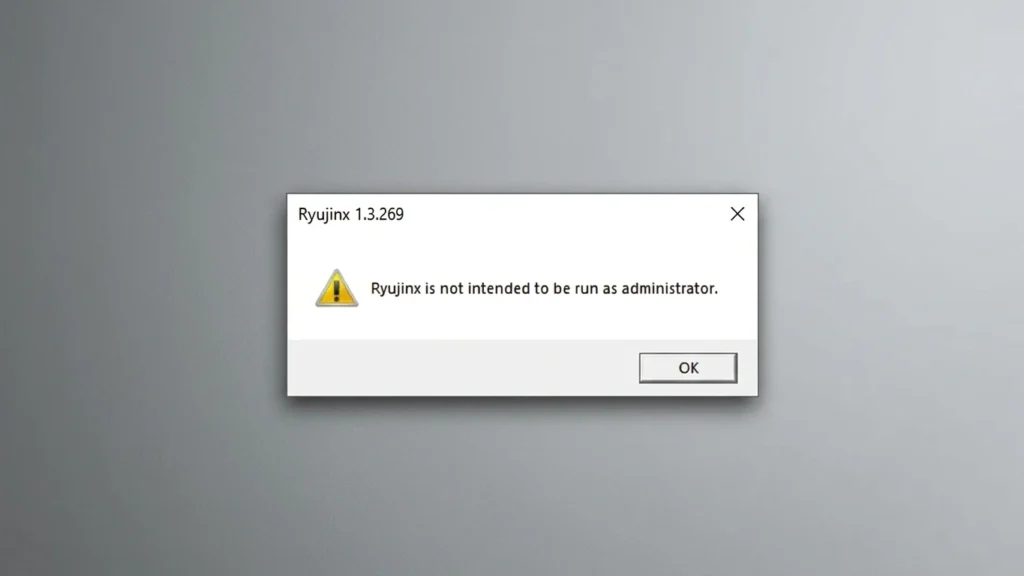
Fixing this error is simple once you understand what’s causing it. The goal is to make sure Ryujinx runs with normal user permissions, not elevated (administrator) access. Follow each step carefully, because even a small misconfiguration can keep triggering the error.
Step 1: Disable “Run as Administrator” (Primary Fix)
This is the most important step and solves the issue in the majority of cases.
Start by locating the Ryujinx.exe file inside your emulator folder. Right-click on it and open Properties, then switch to the Compatibility tab. Here you will see an option labeled “Run this program as an administrator.” If this box is checked, uncheck it immediately. Click Apply, then OK to save the changes.
After doing this, launch Ryujinx normally by double-clicking the file. In most cases, the error disappears instantly. This happens because Ryujinx is designed to work with standard user-level access, and disabling admin mode restores the correct environment.
How to Load NSP File to Ryujinx (Complete Guide)
Step 2: Check Shortcut Settings (Hidden Cause Most Users Miss)
Even if the main executable is configured correctly, Windows shortcuts can override those settings and force the app to run as administrator.
Right-click on your Ryujinx desktop shortcut, then go to Properties → Shortcut → Advanced. Inside the Advanced window, check whether “Run as administrator” is enabled. If it is, disable it and save the changes.
This step is critical because many users only fix the main file but forget the shortcut. If the shortcut still forces admin mode, the error will continue appearing no matter what you change elsewhere.
Step 3: Avoid Installing Ryujinx in System-Protected Folders
The location where you install Ryujinx plays a big role in how Windows handles permissions. If the emulator is placed inside protected directories like:
C:\Program FilesC:\Program Files (x86)
Windows may automatically enforce elevated permissions or restrict file access. This leads to conflicts and triggers the administrator error.
To fix this, move your Ryujinx folder to a simple, user-controlled location such as:
Documents\RyujinxDesktop\Ryujinx
These locations allow full read/write access without requiring admin privileges. Once moved, run the emulator again and check if the issue is resolved.
Step 4: Check Antivirus or Security Software Interference
Some antivirus programs and system security tools automatically enforce stricter rules on unknown applications. In some cases, they may force Ryujinx to run with elevated permissions or block normal execution behavior.
Open your antivirus or security software and look for:
- Application control settings
- Forced elevation rules
- Behavioral protection options
If you find any rule affecting Ryujinx, remove it. It’s also recommended to add the Ryujinx folder to your antivirus exclusion or whitelist. This prevents future interference and ensures smooth operation.
Step 5: Verify File and Folder Permissions
If the problem still persists, there’s a chance your Windows user account doesn’t have proper permissions for the Ryujinx folder.
To check this, right-click the Ryujinx folder and select Properties, then go to the Security tab. Here you will see a list of users and their permissions. Select your current user account and make sure Full Control is enabled.
If Full Control is not granted:
- Click Edit
- Select your user
- Enable Full Control
- Apply changes
This step ensures that Ryujinx can read, write, and modify its files without needing administrator access.
Step 6: Enable User Account Control (UAC) if Disabled
This is an advanced but important fix that many guides overlook. If User Account Control (UAC) is completely disabled on your system, Windows may force applications to run as administrator by default.
To fix this:
- Search for “UAC” in Windows
- Open Change User Account Control settings
- Set it to the default (middle) level
- Restart your PC
Once UAC is enabled again, Ryujinx will run under normal permissions as intended.
Final Check
After completing all steps:
- Restart your PC (recommended)
- Launch Ryujinx normally (no admin rights)
If everything is configured correctly, the error should be completely gone.
FAQs
1. Why does Ryujinx block administrator mode?
Because it causes file access issues and instability. Running as a normal user ensures proper functionality.
2. What if Ryujinx still shows the error after disabling admin?
Check UAC settings and shortcut properties. These are the most common hidden causes.
Conclusion
The error “Ryujinx is not intended to be run as administrator” is not a bug—it’s a protection feature. The solution is to run the emulator normally, not with elevated permissions.
Once you disable admin mode, enable UAC, and clean your setup, Ryujinx will work without issues.
