
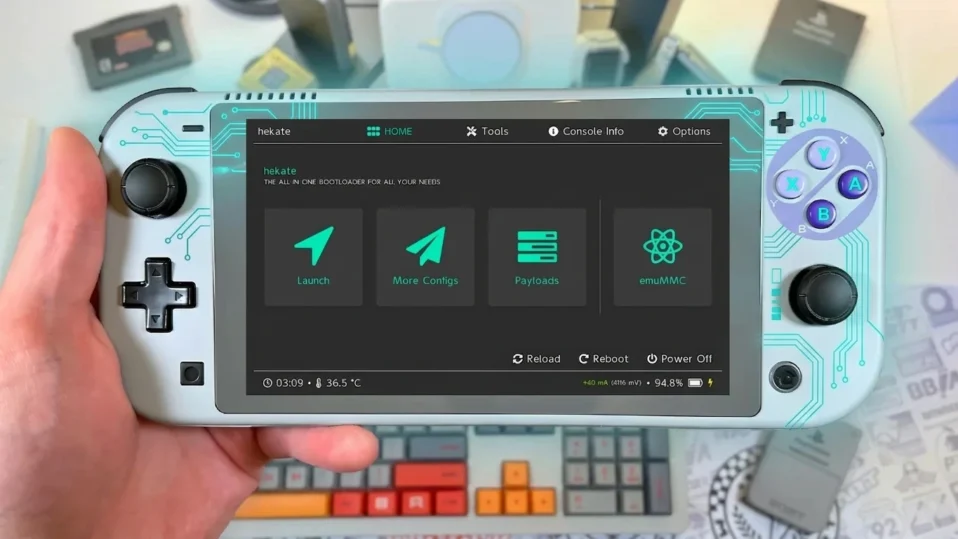
If you’re using a modded Nintendo Switch, keeping your custom firmware updated is essential for stability and compatibility.
The latest Atmosphere v1.11.0 brings important improvements, bug fixes, and better support for newer system updates, making it one of the most reliable versions available right now. Whether you’re running homebrew apps, backups, or custom features, this update ensures a smoother and safer experience.
In this guide, you’ll find everything you need to download and install Atmosphere v1.11.0 on your Nintendo Switch, along with setup instructions and tips to avoid common issues.
This version is fully optimized for modern Switch systems and works seamlessly with updated tools like Hekate, giving you a stable and efficient CFW environment.
What Is Switch Atmosphere?
Switch Atmosphere is a custom firmware (CFW) developed specifically for the Nintendo Switch that allows users to go beyond the limitations of the official system software. It provides deeper access to the console’s features, enabling advanced customization, improved control, and support for additional tools that are not available on stock firmware. In simple terms, Atmosphere transforms your Switch into a more flexible and user-controlled platform.
Built around the powerful Atmosphere CFW, this firmware is widely used by the community for its stability, regular updates, and compatibility with modern Switch systems. It opens up new possibilities for users who want more than just standard gaming, allowing them to personalize and optimize their experience based on their needs.
What Can You Do with Switch Atmosphere?
With Switch Atmosphere, you can:
- Run Homebrew Applications
Install and use community-developed apps such as media players, emulators, and utility tools that expand your console’s functionality beyond gaming. - Customize Your Console
Apply custom themes, tweak the user interface, and modify system elements to create a personalized look and feel. - Backup and Manage Games
Create backups of your game cartridges for personal use and manage your game library more efficiently within your system.
Overall, Switch Atmosphere gives you greater control, flexibility, and customization, making it a popular choice for users who want to enhance their Nintendo Switch experience.
Ryubing / Ryujinx Prod Keys and Firmware Download (v22.1.0)
Requirements for Using Switch Atmosphere (Complete Setup Guide)
Before installing Switch Atmosphere, it’s important to understand the basic requirements to ensure a smooth and safe setup. The Atmosphere CFW is designed to unlock advanced features on the Nintendo Switch, such as homebrew apps, custom themes, and deeper system control. However, it only works properly when your setup meets the right conditions.
Essential Requirements
To get started with Atmosphere, you will need:
- Compatible Nintendo Switch (Unpatched Model)
Only first-generation Switch models support full CFW installation without hardware modification. Newer models may require a modchip. - USB-C to USB-A Cable
Used to connect your Switch to a PC for payload injection. - Computer (Windows or macOS)
Required to transfer files, inject payloads, and manage your setup. - microSD Card (128GB or Higher Recommended)
Stores Atmosphere files, homebrew apps, and game data. A higher-capacity card ensures better performance and storage flexibility. - Payload Injector Tool
Tools such as Hekate or TegraRcmGUI are used to boot Atmosphere in RCM mode. - Latest Atmosphere CFW + Signature Patches
Always download the latest version to ensure compatibility with current system firmware and avoid errors.
Once you’ve gathered these essentials, you can follow the guide below to install the custom firmware. After successful installation, launch Atmosphere by injecting either the Hekate or TegraRCMGUI payload into your Switch when it’s in RCM (Recovery Mode).
Switch Atmosphere 1.11.1 Download (Latest Version)
- System Software Name: Switch Atmosphere
- Version: 1.11.1
- File Size: 4.36MB
- Latest Update: April, 2026
- Github
- Downloads: 100K+
Download Switch Atmosphere Latest Versions (Official Releases)
| Version | Release Date | Download Link |
|---|---|---|
| Atmosphere v1.11.1 (Latest) | April 2026 | Download v1.11.1 |
| Atmosphere v1.11.0 | April 2026 | Download v1.11.0 |
| Atmosphere v1.10.2 | Jan 2026 | Download v1.10.2 |
| Atmosphere v1.9.5 | Sep 2025 | Download v1.9.5 |
| Atmosphere v1.9.4 | Sep 2025 | Download v1.9.4 |
| Atmosphere v1.9.3 | Jul 2025 | Download v1.9.3 |
| Atmosphere v1.9.2 | Jul 2025 | Download v1.9.2 |
How to Update Atmosphere & Hekate on Nintendo Switch (Step-by-Step Guide)
Keeping your CFW (Custom Firmware) up to date is important for better stability, game compatibility, and fewer errors on your Nintendo Switch. This guide will help you safely update Atmosphere and Hekate using a simple and structured process.
What You Need Before Starting
Before updating, make sure you have everything ready:
- A Nintendo Switch with CFW installed
- A microSD card (64GB or higher recommended)
- A Windows PC or a laptop
- Latest Atmosphere + Hekate CFW Pack
Step 1: Backup and Prepare Your microSD Card
Before making any changes, always create a backup to avoid data loss.
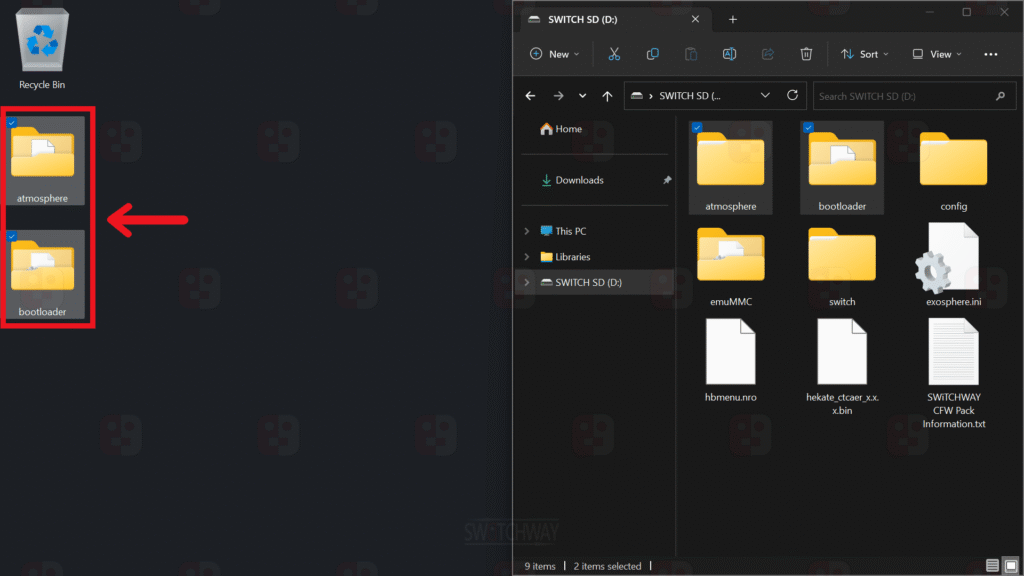
- Insert your microSD card into your PC
- Copy all important files to a safe location
- Locate and delete old folders:
atmospherebootloader
Removing old files prevents conflicts with the new update.
Step 2: Download and Extract the Latest CFW Pack
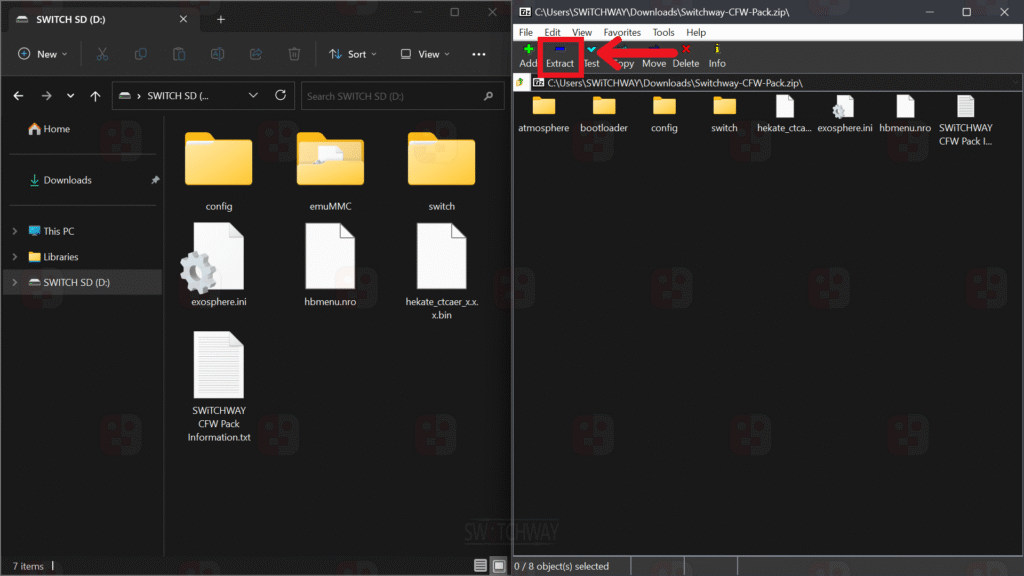
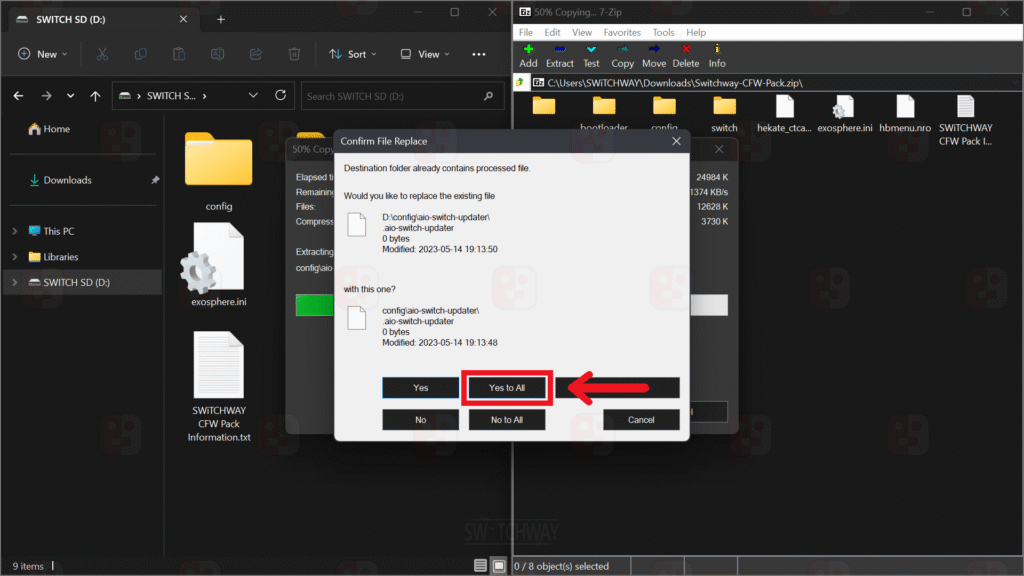
- Download the latest Switch CFW Pack (Atmosphere + Hekate)
- Extract the ZIP file
- Copy all extracted files to the root of your microSD card
- Replace any files if prompted
This ensures your system is updated with the latest firmware files.
Ryujinx Troubleshooting Guide: Fixing Common Errors
Step 3: Boot into Hekate (Important Step)
For Unpatched Switch (RCM Method)
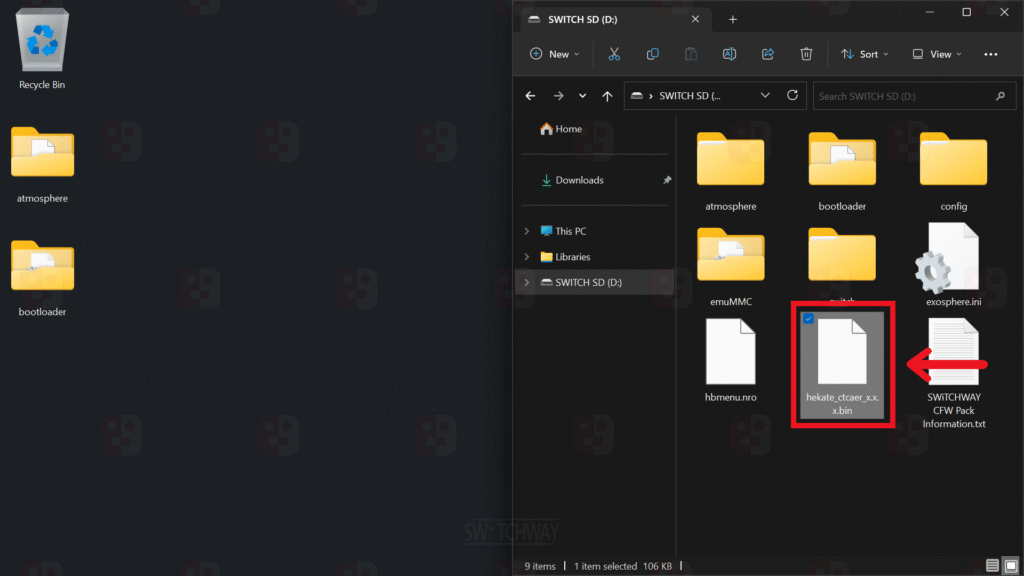
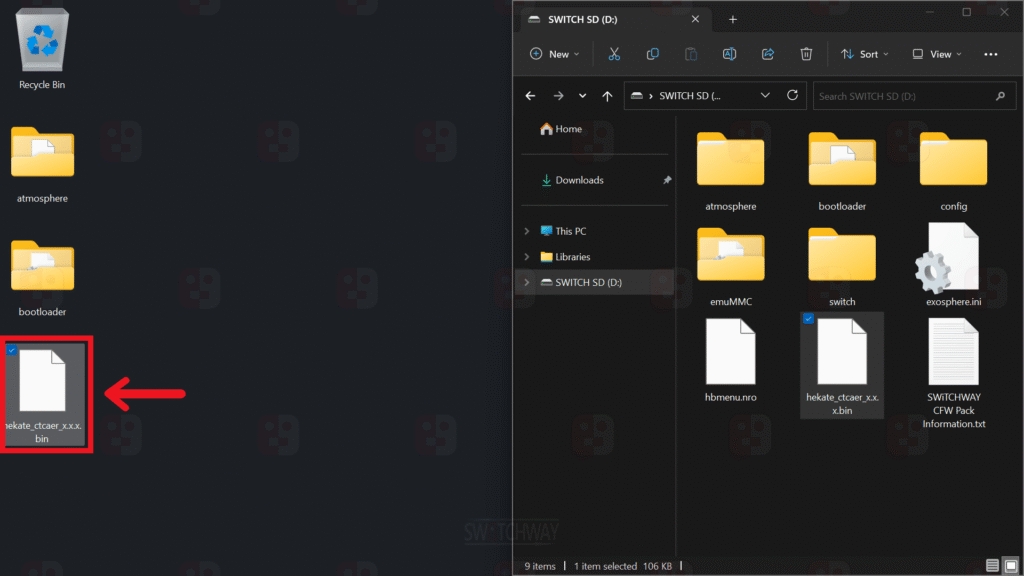
- Copy hekate_ctcaer_x.x.x.bin to your desktop
- Insert the microSD card back into your Switch
- Enter RCM mode
- Inject the payload using tools like TegraRcmGUI
For Modchip Users
- Insert a microSD card
- Power ON your Switch
- It will automatically boot into Hekate
Step 4: Launch Atmosphere CFW
Once inside Hekate:
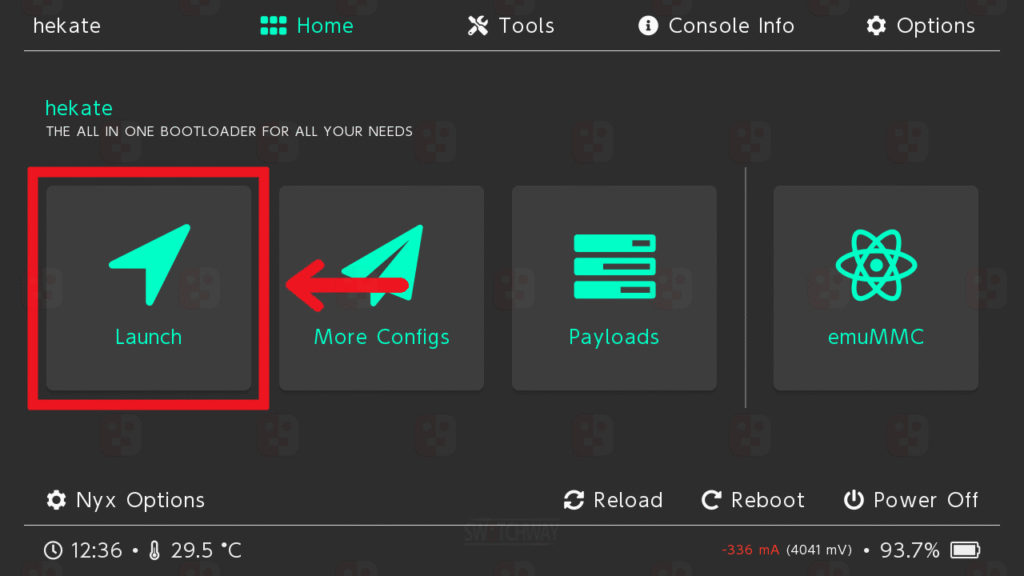
- Go to Launch
- Choose your preferred option:
emuMMC (Recommended)
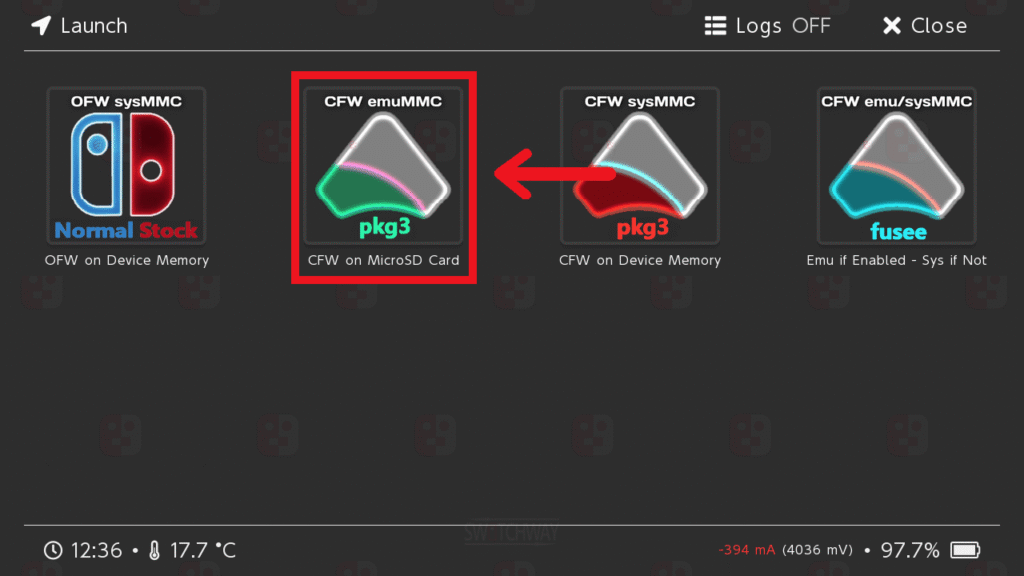
- Select:
CFW emuMMC fss0 - Runs CFW on SD card (safer)
sysMMC
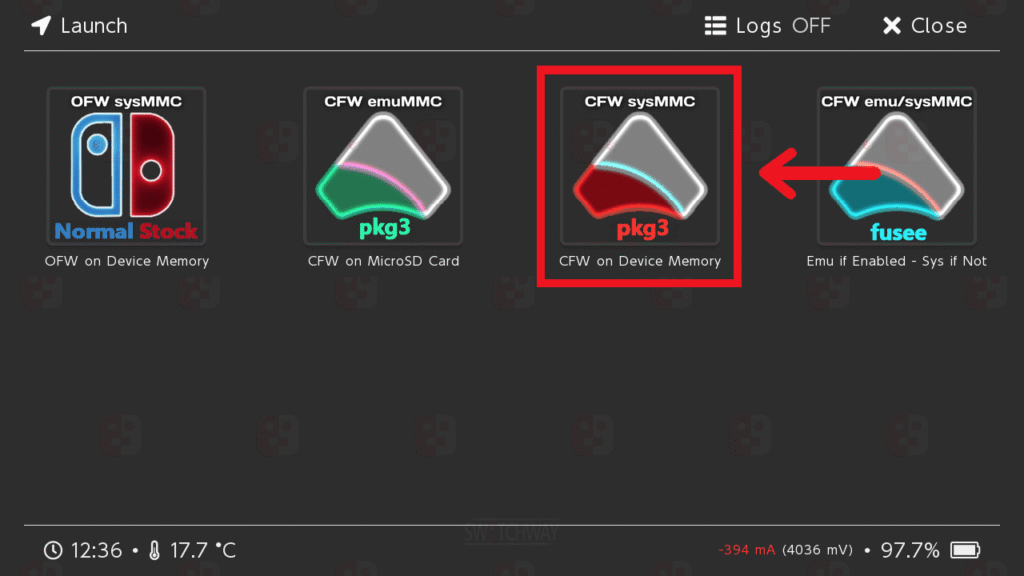
- Select:
CFW sysMMC fss0 - Runs CFW on internal memory
Step 5: Verify Atmosphere Installation
After booting into the system:
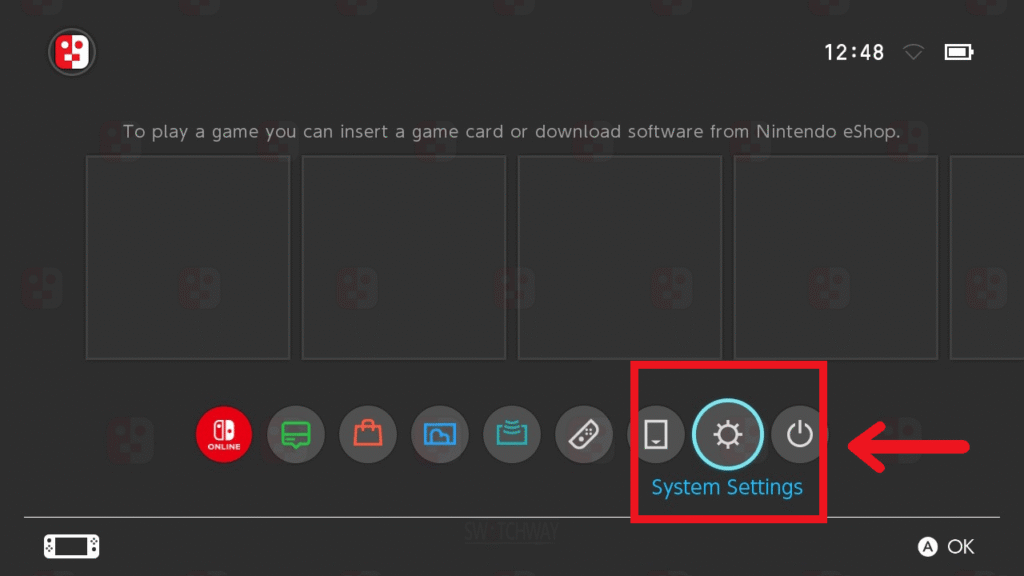
- Open System Settings → System
- Check the version info:
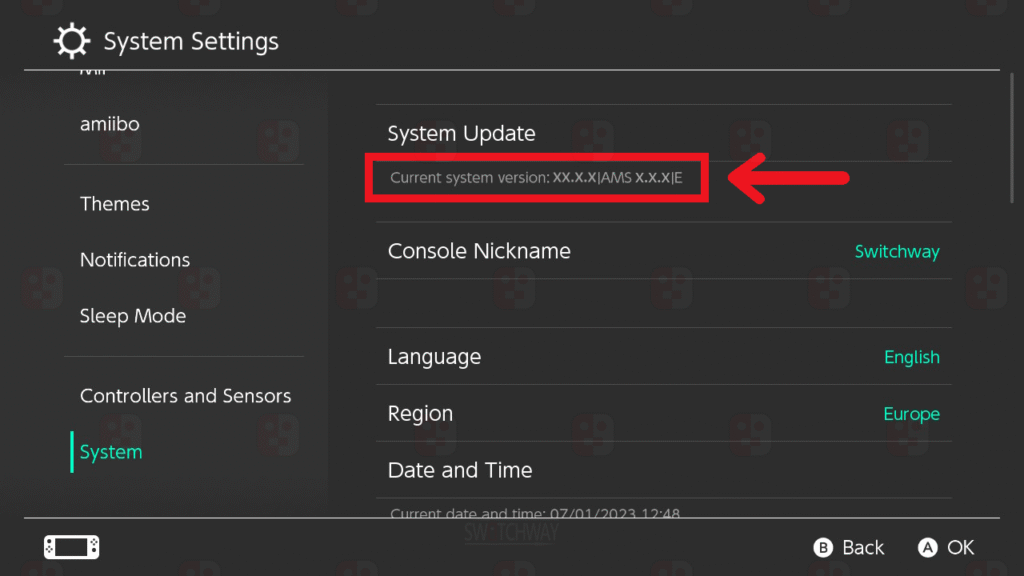
Example:xx.x.x | AMS 1.x.x | E or S
This confirms that Atmosphere is successfully updated.
Step 6: Check Serial Number & System Status
- Scroll to Serial Information
- It should display something like:
XAW00000000000
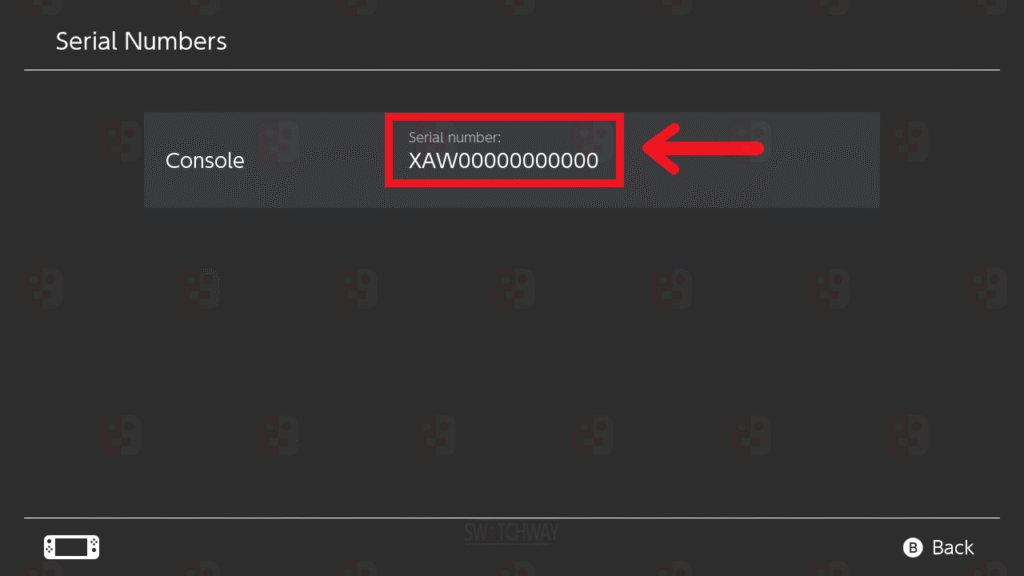
This step confirms system integrity after the update.
Step 7: Test Network Blocking (Very Important)
To avoid Nintendo bans:
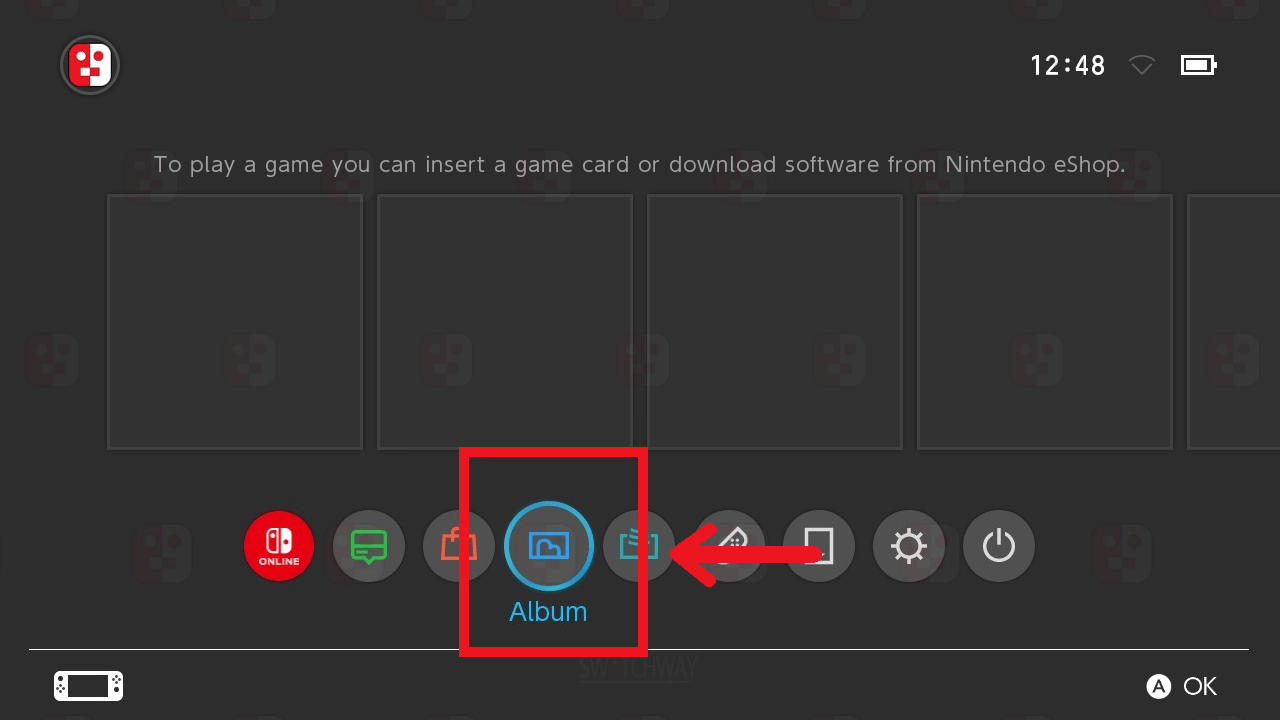
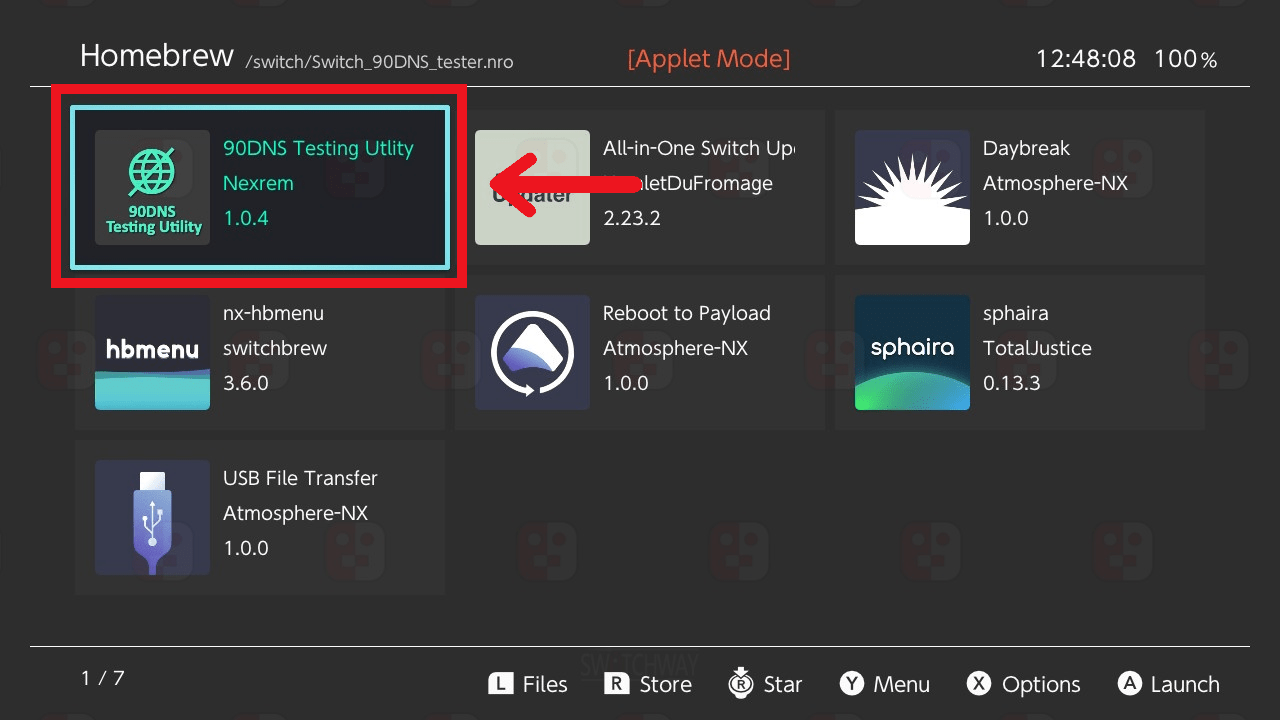
- Open Album (Homebrew Menu)
- Run 90DNS Testing Utility
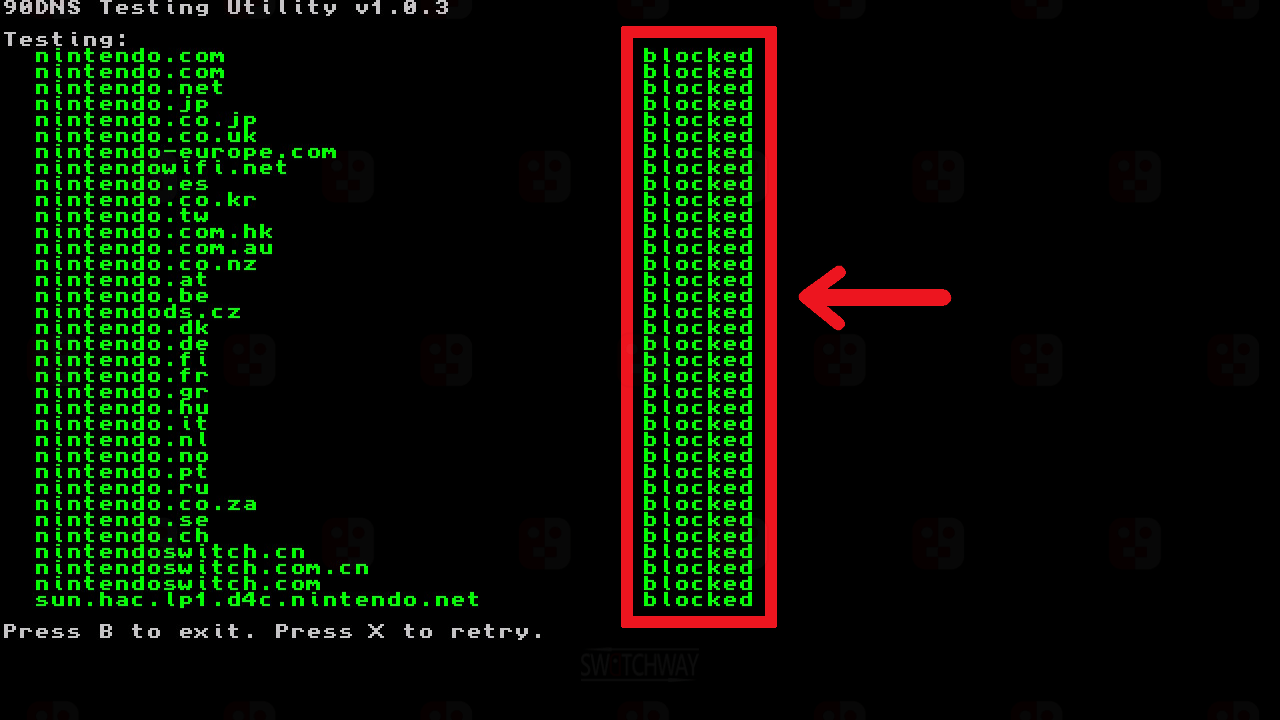
- Make sure all connections show as blocked
If not blocked, do NOT go online.
Step 8: Clean Up Old Files
Once everything is working properly:
- Delete old backup folders from your PC
- Keep only the latest files
This keeps your setup clean and organized.
Optional Next Steps
After updating, you can:
- Update your Switch firmware safely
- Configure your CFW pack settings
- Install homebrew apps
- Join community support (Discord, forums, etc.)
Important Tips (Must Follow)
- Always backup before updating
- Use only latest Atmosphere + Hekate versions
- Avoid connecting to official servers without protection
- Prefer emuMMC for safer usage
This guide ensures your Atmosphere and Hekate update process is smooth, safe, and error-free.
Please note that while using custom firmware to run unlicensed games or engage in other illicit activities is prohibited, installing custom firmware itself is not. Always respect copyright laws and utilize custom firmware responsibly.
Frequently Asked Questions (FAQs)
1. What is the latest version of Switch Atmosphere?
The latest version of Switch Atmosphere is regularly updated on the official GitHub page. It’s always recommended to use the latest release because it includes bug fixes, better stability, and support for newer Nintendo Switch firmware versions.
2. Is Switch Atmosphere safe to use?
Yes, Atmosphere CFW is considered safe when used correctly. However, you should avoid connecting to official Nintendo servers without protection, as it may lead to a console ban. Using tools like DNS blocking or staying offline is recommended.
For Nintendo Switch enthusiasts seeking to enhance their gaming experience, Atmosphere is an excellent choice. It enables you to run homebrew apps, customize system settings, and back up your games. These features grant you more control over your gaming, making it easier to enjoy your favorite titles in new ways.
