
If you are setting up Ryujinx on your PC, installing the Nintendo Switch firmware is one of the most important steps. The firmware allows the emulator to replicate the system environment of a real Nintendo Switch, which helps games run properly and improves overall compatibility.
Although installing firmware might sound technical at first, the process is actually very simple. With the correct firmware file and a few quick steps inside the emulator, you can complete the setup in just a few minutes.
This guide explains the installation process clearly so you can configure your emulator correctly and avoid common setup issues.
What’s Switch Firmware & Why is it necessary?
Firmware works as the operating system of the Nintendo Switch console. It manages essential system functions and replicates the features and functionality of the actual Switch console.
This includes mirroring system menus, user interface elements, and game compatibility.
When you install firmware inside the Ryujinx emulator, it recreates the environment of a real Switch console on your computer. This allows the emulator to load and run game files correctly while maintaining better compatibility with newer titles.
Without installing firmware, some games may fail to launch, or certain system functions may not work properly.
Requirements Before Installing Firmware
Before starting the installation process, make sure you have the following:
- The latest version of the Ryujinx emulator
- A Nintendo Switch firmware file (.zip format)
- Updated prod.keys and title.keys
Keeping these components updated helps prevent issues such as firmware parsing errors or game compatibility problems.
How to Add Ryujinx Firmware in EmuDeck
How to Install Nintendo Switch Firmware on Ryujinx
Follow these simple steps to install firmware in the Ryujinx emulator.
Step 1: Download the Switch Firmware File
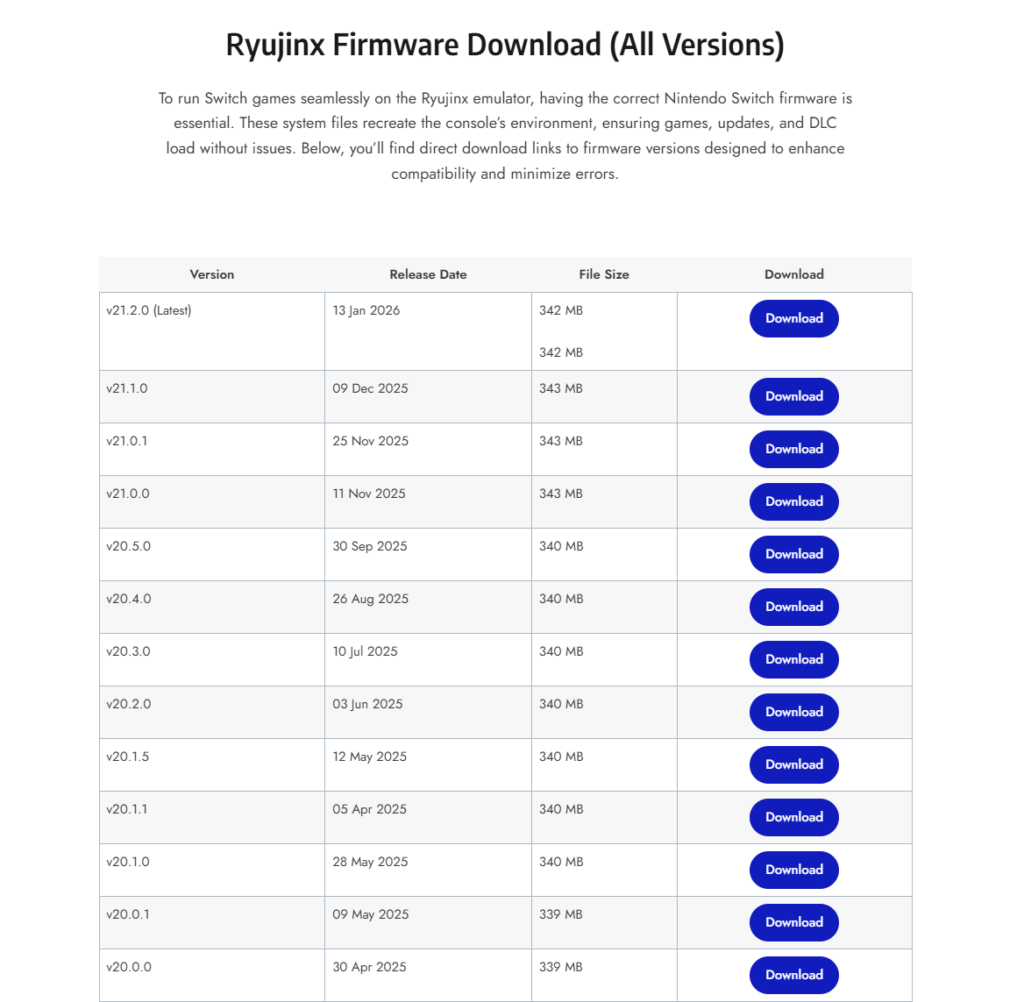
First, obtain the Nintendo Switch firmware file in .zip format. Make sure the firmware version is compatible with your emulator setup and that the file is downloaded from the ryujinx-firmware.com home page.
Step 2: Launch the Ryujinx Emulator
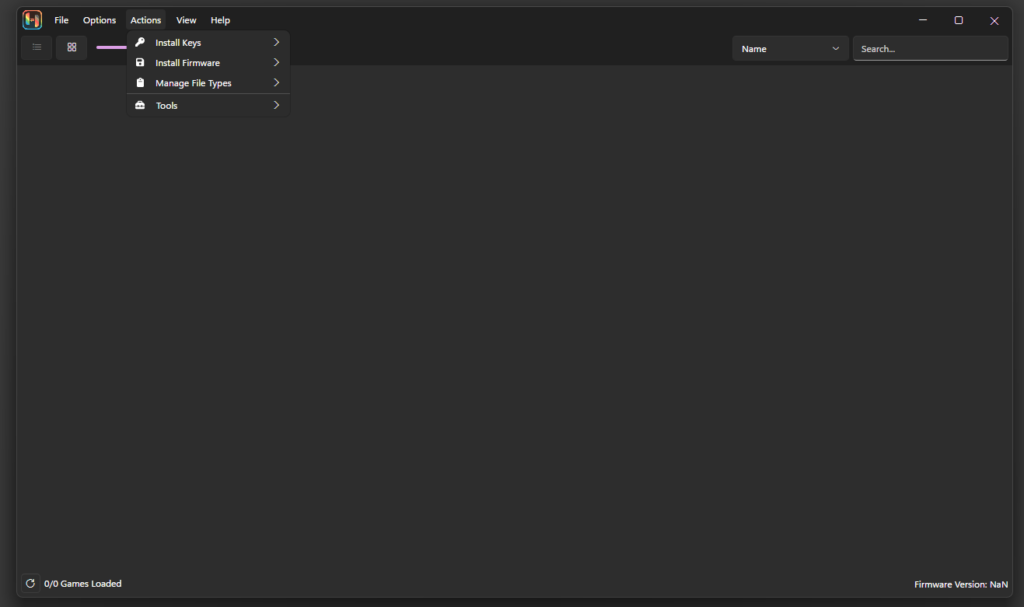
Open the Ryujinx emulator on your PC.
At the top of the emulator window, locate the Tools menu.
Tools → Install Firmware
Click this option to begin the firmware installation process.
Step 3: Choose the Firmware Installation Method
When the firmware installation window appears, you will see two available options:
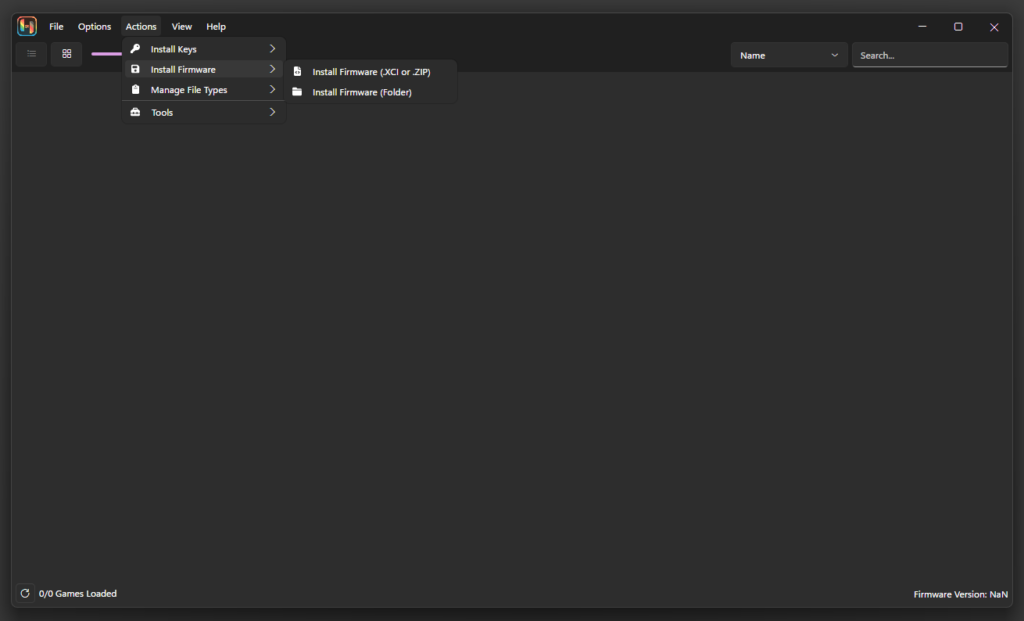
- Install from XCI or ZIP
- Install from a Directory
For most users, the easiest method is to install from XCI or ZIP. Select this option to continue.
Step 4: Select the Firmware ZIP File
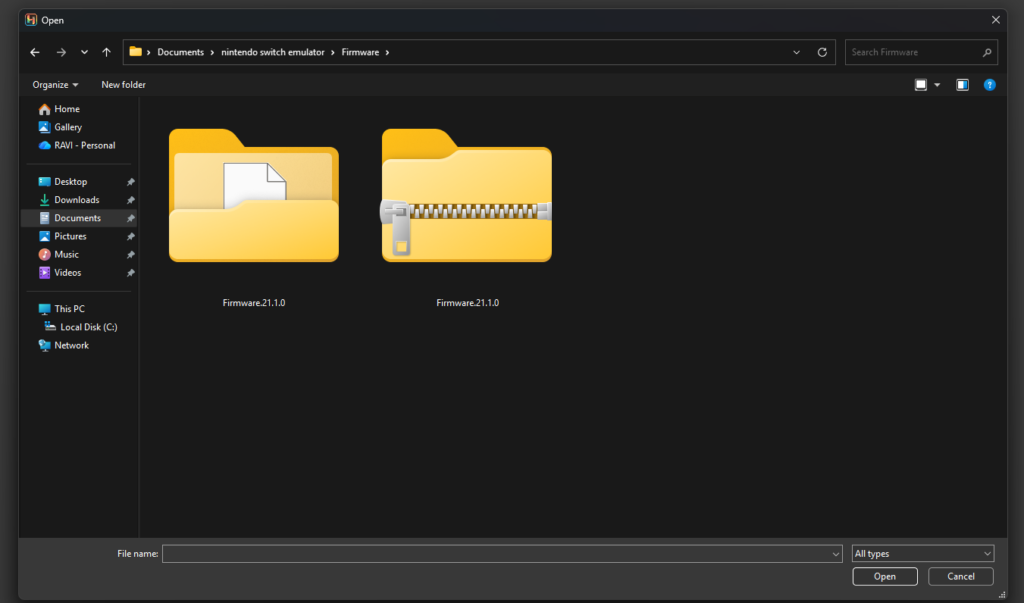
A file browser window will open. Navigate to the location where you saved the Ryujinx Firmware.zip file on your computer.
Select the file and click Open.
Step 5: Confirm the Installation
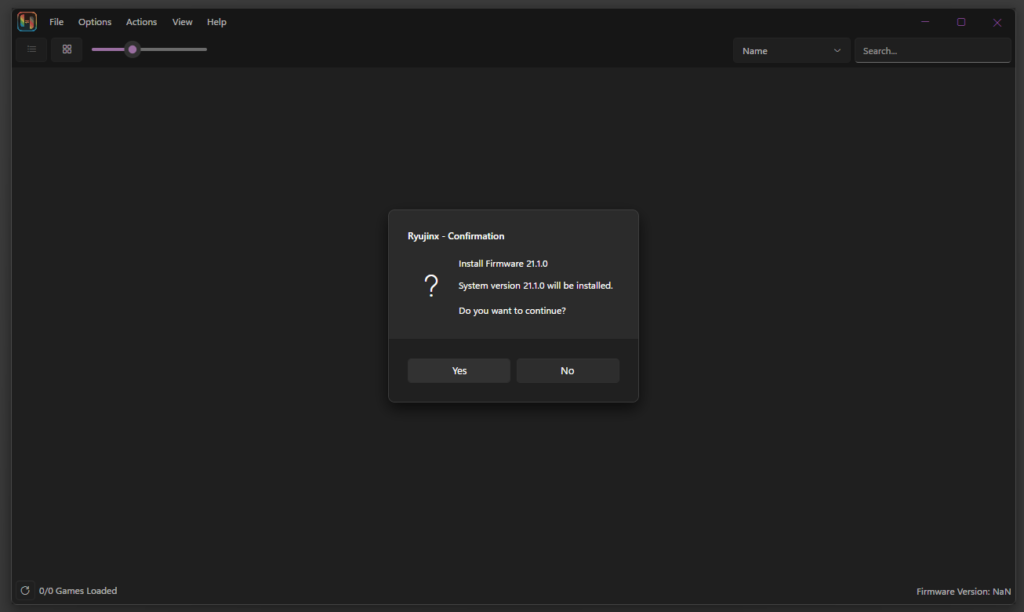
After selecting the firmware file, Ryujinx will display a confirmation prompt asking whether you want to proceed with the installation.
Click Yes to begin installing the firmware.
The emulator will now automatically extract and install the firmware.
Step 6: Complete the Installation
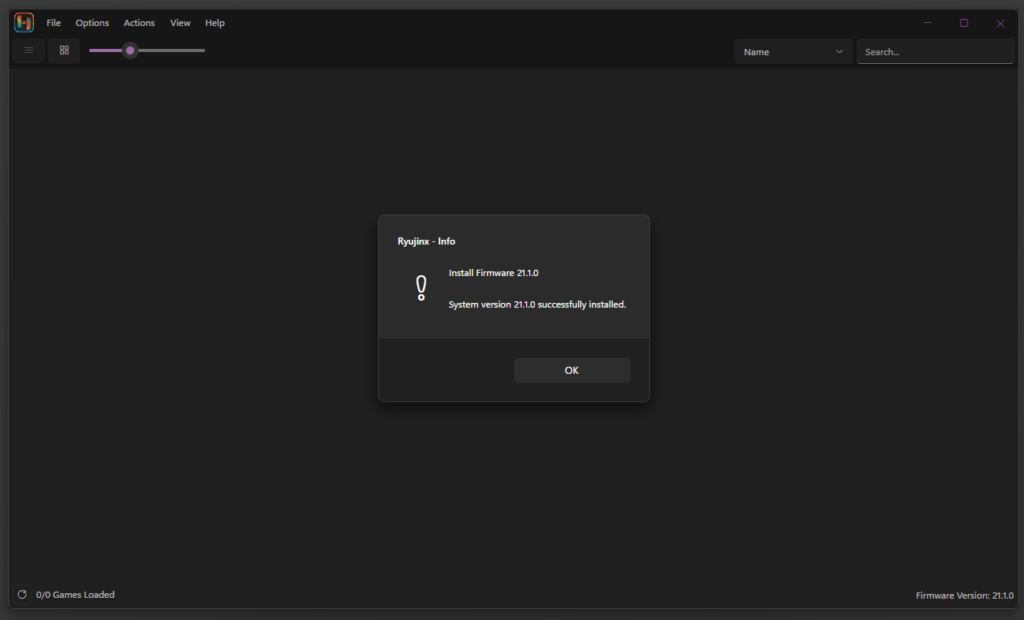
Once the installation finishes, Ryujinx will display a message confirming that the firmware has been installed successfully.
Click OK to close the confirmation window.
To ensure the firmware loads correctly, close and restart the Ryujinx emulator.
Verify the Firmware Installation
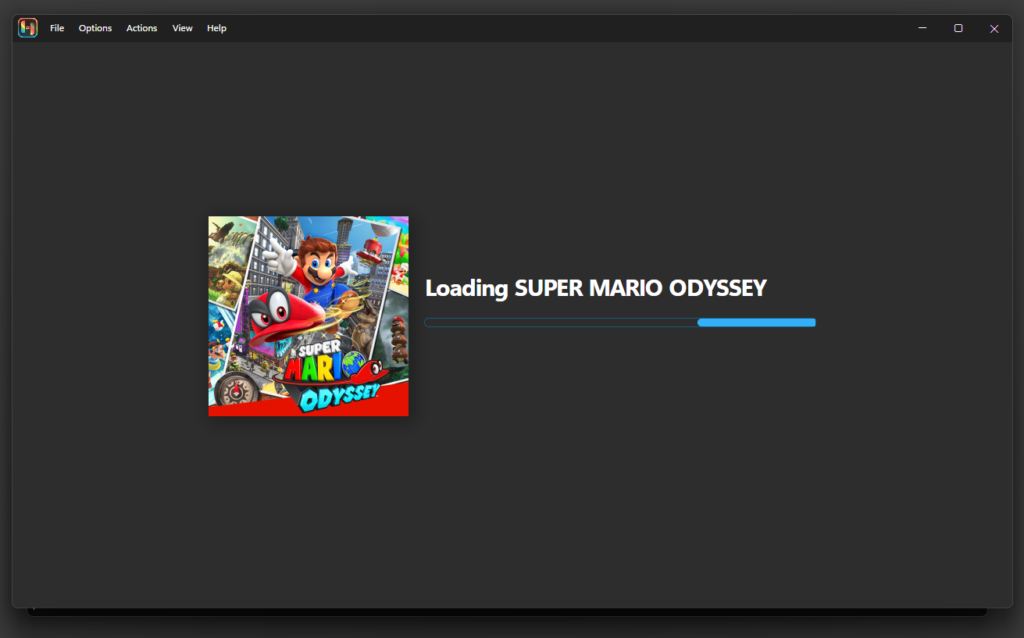
After restarting the emulator, the firmware will be fully active. You can now load a game to confirm that everything is working correctly.
If the game launches without errors, your switch firmware installation was successful, and the emulator is now properly configured.
Ryujinx Where to Put Firmware and Keys
Tips for a Smooth Firmware Setup
To avoid common installation problems, keep these tips in mind:
- Always use matching firmware and keys
- Restart the emulator after installing the firmware
- Keep Ryujinx updated to the latest version
- Use clean firmware files without modifications
These small steps help ensure stable performance and better game compatibility.
Ryujinx Firmware Hash Error Fix
Frequently Asked Questions (FAQ)
Can I use any firmware version with Ryujinx?
No, not every firmware version works with every build of Ryujinx. Some older emulator builds may not support the newest firmware versions. For the best compatibility, it is recommended to install a firmware version that matches the latest Ryujinx release. Keeping both the emulator and firmware updated usually prevents most compatibility issues.
Where should I place the firmware files?
You normally do not need to place firmware files when installing through the emulator manually. Ryujinx includes a built-in installer that automatically installs the firmware to the correct location.
If you ever need to check the installed files manually, they are typically located in the following directory:
C:\Users\YourName\AppData\Roaming\Ryujinx\system
Using the built-in Tools → Install Firmware option is always the safest and recommended method.
Can I use firmware dumps from different regions?
In most cases, firmware itself is not strictly region-locked. However, mismatched regions may occasionally lead to compatibility issues with certain games or system functions.
For the most stable setup, it is generally best to use firmware and game dumps that come from the same region as your console.
Final Words
Installing firmware is an essential part of setting up Ryujinx. Once the firmware is installed correctly, the emulator can replicate the Nintendo Switch environment more accurately, allowing games to run smoothly on your PC.
By following the steps in this guide, you can complete the installation quickly and start enjoying your Nintendo Switch games through the Ryujinx emulator without unnecessary complications.
