
Installing NSP updates and DLC in Nintendo Switch emulators is an important step if you want the best gameplay experience. Game updates usually include bug fixes, performance improvements, and new features, while DLC adds extra content such as characters, missions, and maps.
Ryujinx supports installing updates and DLC using NSP files. The process is simple and only takes a few minutes once your emulator, firmware, and keys are properly set up.
Below is a clear step-by-step guide to help you install game updates and DLC without confusion.
What Are NSP Updates and DLC?
- NSP Updates: These are files that update the base game, fixing bugs, improving performance, or adding new features.
- DLC (Downloadable Content): These are additional content packs that expand the game, such as new levels, characters, or storylines.
Both updates and DLC are installed in the same way in Ryujinx, but they serve different purposes.
Why Install Game Updates and DLC in Ryujinx?
Installing game updates and DLC in Ryujinx helps ensure your games run smoothly and include the latest improvements. Many games launch with version 1.0.0, which may contain minor bugs, performance issues, or missing features. Updates released by developers fix these problems and improve overall stability.
Game updates can also introduce new features, balance changes, and gameplay improvements that enhance the overall experience. Without installing these updates, you may miss important improvements that make the game run better.
DLC (Downloadable Content) adds extra content such as new missions, characters, maps, and story expansions. By installing DLC in Ryujinx, you can enjoy the complete version of the game, just like you would on a real console.
Prerequisites for Installing Updates and DLC
Before installing updates or DLC in Ryujinx, make sure the following requirements are ready:
- Base Game Installed – The game must already appear in your Ryujinx game library.
- Correct Game Directory – Ensure your game folder is added in the Ryujinx settings so the emulator can detect the game.
- Separate NSP Files – Keep the base game, update, and DLC files as separate
.NSPfiles. Do not merge them. - Latest Firmware Installed – Your emulator should have the latest Nintendo Switch firmware for better compatibility.
- Updated Prod.Keys – Make sure you
prod.keysandtitle.keysare up to date to support newer updates and DLC.
How to Install NSP Updates or DLC in Ryujinx
The installation process in Ryujinx is slightly different but still very straightforward.
Step 1: Open the Game Library
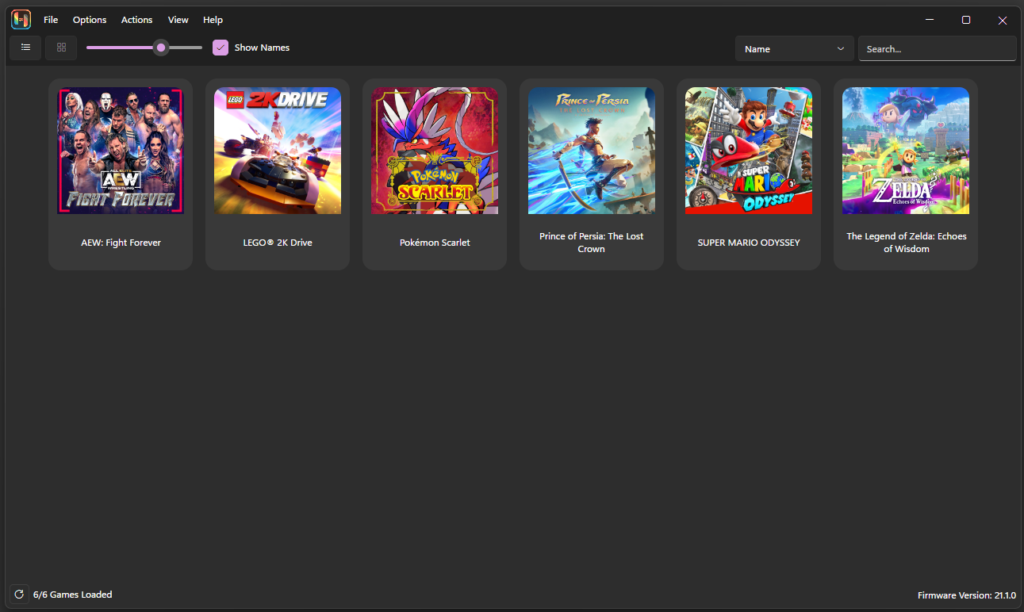
Launch the Ryujinx emulator and locate the game in your library.
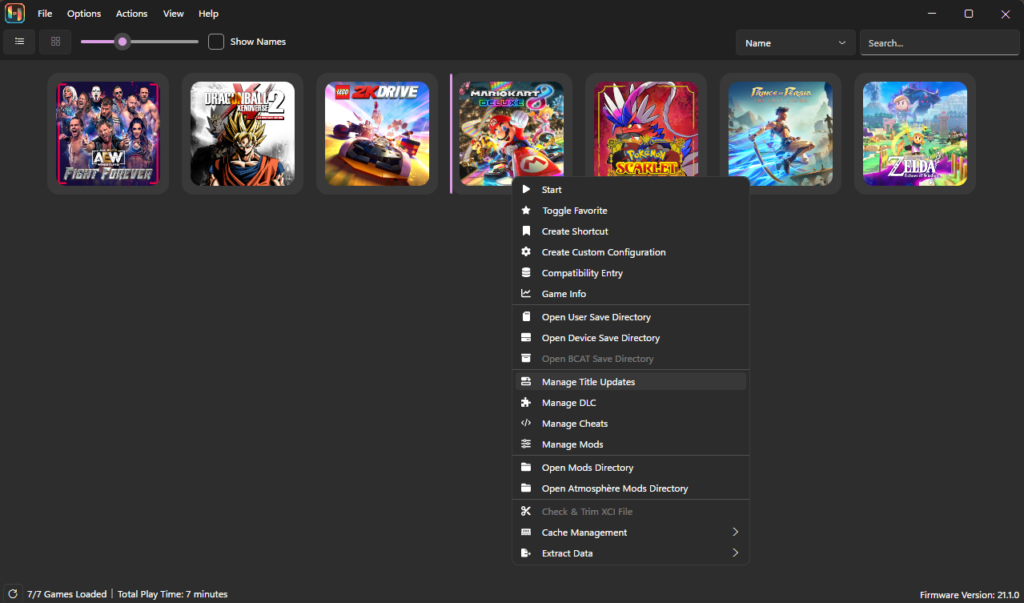
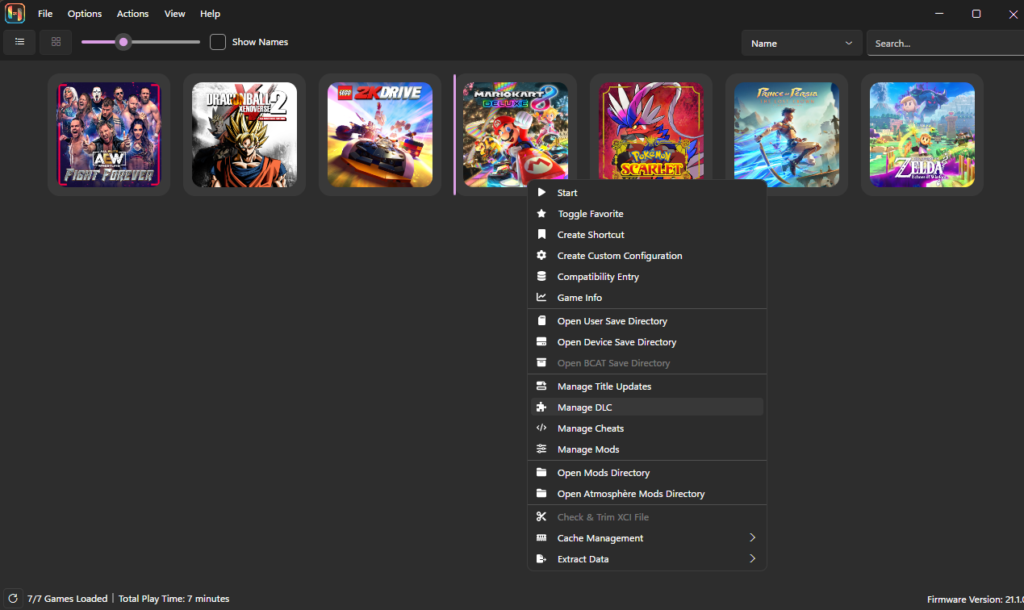
Right-click the game you want to update.
You will see two options:
- Manage Title Updates – for installing game updates
- Manage DLC – for installing downloadable content
Step 2: Add the NSP File
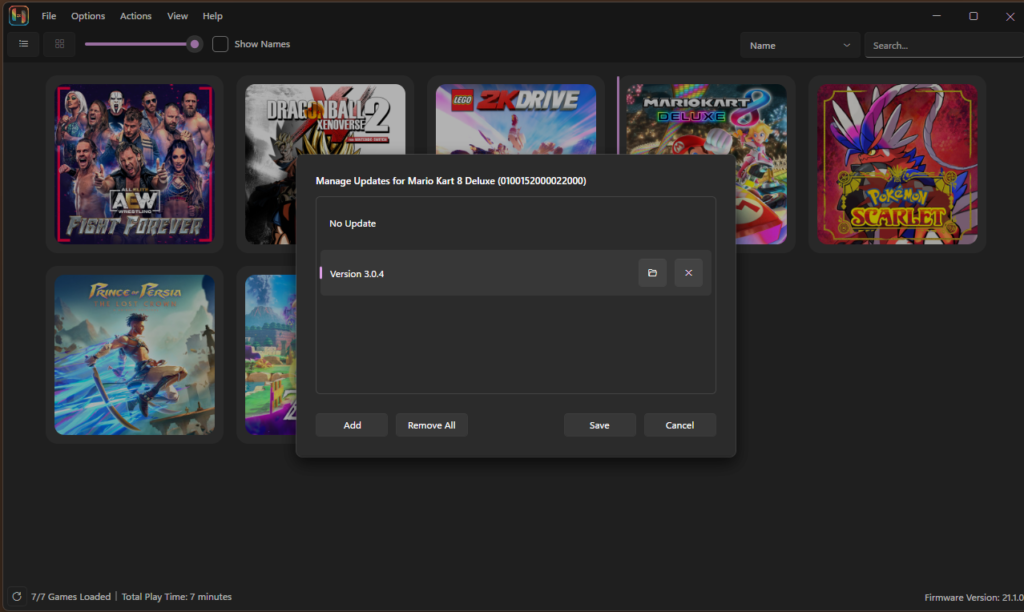
After selecting the option, a Title Update Manager or DLC Manager window will open.
Click Add to open the file browser.
Step 3: Select and Save
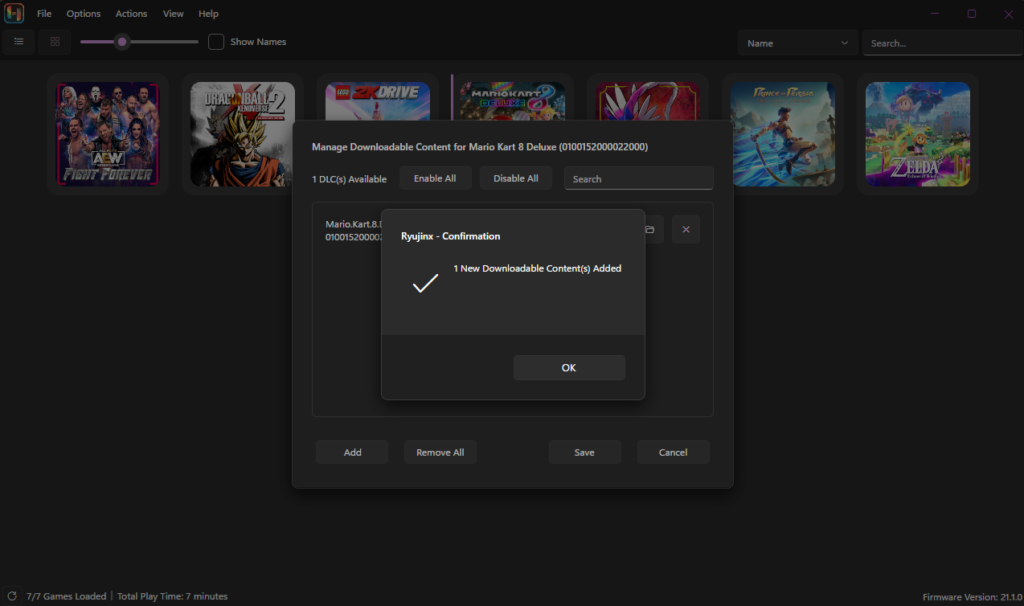
Navigate to the location where the NSP update or DLC file is saved.
Select the file and click Save.
The update or DLC will now appear in the manager list. Make sure it is enabled, then close the window.
Your game is now updated and ready to play.
Ryujinx Troubleshooting Guide: Fixing Common Emulator Errors
Tips for Managing Updates and DLC
Keep Firmware and Keys Updated
Make sure your Nintendo Switch firmware and prod.keys are up to date. Newer updates often require the latest encryption keys to work correctly.
Enable or Disable Content Easily
Ryujinx allows you to toggle updates and DLC on or off from the manager menu. This is useful if a specific update causes compatibility issues.
Check Game Version Compatibility
Some updates require a specific base game version. If an update fails to load, verify that your base game version matches the update requirements.
Common Issues and Troubleshooting
- File Not Recognized:
- Ensure the file format is correct (.nsp).
- Check if the file is corrupted and re-download if necessary.
- Update your Ryujinx emulator and prod.keys.
- Installation Fails:
- Verify you have enough disk space.
- Restart the emulator and try again.
- Run Ryujinx as an administrator.
- DLC Not Showing in Game:
- Ensure the DLC matches the game’s region.
- Check if the DLC is activated in the Manage DLC window.
Tips for a Smooth Installation
- Always use the latest version of Ryujinx and firmware.
- Keep your prod.keys updated to avoid compatibility issues.
- Organize your NSP files in a dedicated folder for easy access.
Frequently Asked Questions (FAQs)
Can I install DLC or updates in Ryujinx without the base game?
No, you must have the base game added and visible in your Ryujinx library. Updates and DLC are always applied to an existing base game and will not function as standalone files.
Do I need to update my firmware and keys each time I install new DLC or updates?
It’s a good practice to keep both your firmware and prod.keys up to date, especially when dealing with recently released updates or DLC. Mismatched versions can cause compatibility issues or prevent content from installing correctly.
How can I disable a DLC or remove an installed update?
Right-click the game, open “Manage DLC” or “Manage Title Updates,” and simply uncheck the box next to the DLC or select “No Update” for updates, then click “Save.” The content will be deactivated but not deleted from your system.
Can I add multiple updates or DLCs at once?
Yes, during the “Add” process in the update or DLC manager, you can select multiple NSP files at once. Ryujinx will let you activate or deactivate each piece of content as you prefer.
What file format do updates and DLCs need to be?
All updates and DLC files must be in the NSP format to be installed in Ryujinx.
Final Thoughts
Installing game updates and DLC in Ryujinx is a quick process that can significantly improve your gameplay. Updates fix bugs, improve performance, and sometimes add new features, while DLC expands the game with extra content.
By keeping your games, firmware, keys, and emulator version up to date, you can ensure the best compatibility and a smoother gaming experience on your PC.
